Webカメラで二次元コード読取ZXingとAForgetでqrcodeやBarcodeを作成&解析できる
Webカメラ映像を写す
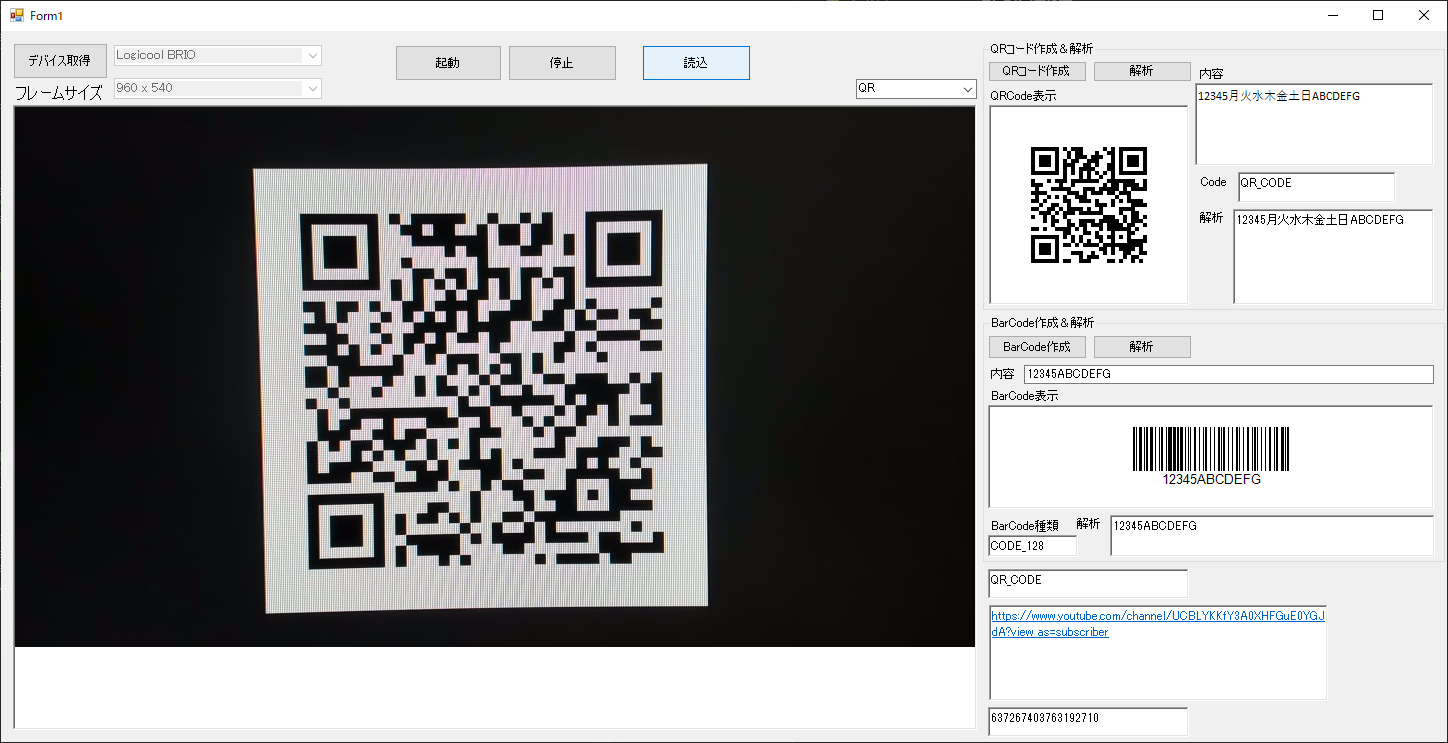
最近は、テレワークをする人が多くなってきた世の中ですが、Webカメラの映像を写し、二次元コード読み取るアプリケーションをつくりました。
最近は、QRCode決済やQRCodeで情報配信していることが世の中に多くなってきていることからか、わからないが、QRCodeに関してのアクセスが多くなっています。
Webカメラで二次元コード読取
では、さっそく、ソースコードを載せておきます。
using System;
using System.Drawing;
using System.Windows.Forms;
using ZXing;
using AForge.Video;
using AForge.Video.DirectShow;
using System.Linq;

namespace QRCode_Reader
{
    public partial class Form1 : Form
    {
        public Form1()
        {
            InitializeComponent();
        }

        private FilterInfoCollection videoDevices;

        private VideoCaptureDevice videoDevice;

        private VideoCapabilities[] videoCapabilities;


        /// <summary>
        /// デバイス取得ボタン
        /// </summary>
        /// <param name="sender"></param>
        /// <param name="e"></param>
        private void DevicesGet_Click(object sender, EventArgs e)
        {
            videoDevices = new FilterInfoCollection(FilterCategory.VideoInputDevice);
            if (videoDevices.Count != 0)
            {
                comboBox1.Items.Clear();
                foreach (FilterInfo device in videoDevices)
                {
                    comboBox1.Items.Add(device.Name);
                }
                comboBox1.SelectedIndex = 0;
                comboBox2.Enabled = true;
                start_button.Enabled = true;

            }
            else
            {
                comboBox1.Items.Clear();
                comboBox1.Items.Add("デバイスが見つかりません");
                comboBox1.SelectedIndex = 0;
            }
        }


        /// <summary>
        /// デバイス一覧変更時
        /// </summary>
        /// <param name="sender"></param>
        /// <param name="e"></param>
        private void comboBox1_SelectedIndexChanged(object sender, EventArgs e)
        {
            videoDevice = new VideoCaptureDevice(videoDevices[comboBox1.SelectedIndex].MonikerString);
            videoCapabilities = videoDevice.VideoCapabilities;
            comboBox2.Items.Clear();
            foreach (VideoCapabilities capabilty in videoCapabilities)
            {
                comboBox2.Items.Add(string.Format("{0} x {1}", capabilty.FrameSize.Width, capabilty.FrameSize.Height));
            }
            //comboBox2.SelectedIndex = 0;
            videoCapabilities = videoDevice.VideoCapabilities;
            comboBox2.Items.Clear();
            foreach (VideoCapabilities capabilty in videoCapabilities)
            {
                comboBox2.Items.Add(string.Format("{0} x {1}", capabilty.FrameSize.Width, capabilty.FrameSize.Height));
            }
            //comboBox2.SelectedIndex = 0;
        }


        /// <summary>
        /// フレームサイズ一覧
        /// </summary>
        /// <param name="sender"></param>
        /// <param name="e"></param>
        private void comboBox2_SelectedIndexChanged(object sender, EventArgs e)
        {
            videoDevice.VideoResolution = videoCapabilities[comboBox2.SelectedIndex];
        }


        /// <summary>
        /// 起動ボタン押下
        /// </summary>
        /// <param name="sender"></param>
        /// <param name="e"></param>
        private void Start_Click(object sender, EventArgs e)
        {
            videoDevice.NewFrame += new NewFrameEventHandler(VideoDevice_NewFrame);
            videoDevice.Start();

            start_button.Enabled = false; //起動ボタン
            stop_button.Enabled = true;  //停止ボタン
            deviceGet_button.Enabled = false;  //デバイス取得ボタン
            comboBox1.Enabled = false;     //デバイス一覧
            comboBox2.Enabled = false;     //サイズ一覧
        }


        //新しいフレームが来た時
        void VideoDevice_NewFrame(object sender, NewFrameEventArgs eventArgs)
        {
            Bitmap img = (Bitmap)eventArgs.Frame.Clone();

            var destBitmapData = img.LockBits(new System.Drawing.Rectangle(0, 0, img.Width, img.Height), System.Drawing.Imaging.ImageLockMode.ReadOnly, img.PixelFormat);
            try
            {
                //ここで画像処理
                camera_Live.Image = img;
                //img.Dispose();
            }
            finally
            {

                //処理が完了したためBitmapDataをアンロックする
                img.UnlockBits(destBitmapData);

            }
        }

        /// <summary>
        /// 停止ボタン処理
        /// </summary>
        /// <param name="sender"></param>
        /// <param name="e"></param>
        private void Stop_button_Click(object sender, EventArgs e)
        {
            if (videoDevice.IsRunning)
            {
                videoDevice.SignalToStop();
                videoDevice.WaitForStop();
            }
            camera_Live.Image.Dispose();
            camera_Live.Image = null;
            start_button.Enabled = true; //起動ボタン
            stop_button.Enabled = false;  //停止
            deviceGet_button.Enabled = true;//デバイス取得
            comboBox1.Enabled = true;     //デバイス一覧
            comboBox2.Enabled = true;     //サイズ一覧

        }


        /// <summary>
        /// 画面閉じたとき
        /// </summary>
        /// <param name="sender"></param>
        /// <param name="e"></param>
        private void Form1_FormClosed(object sender, FormClosedEventArgs e)
        {
            try
            {
                if (videoDevice == null)
                {

                }
                else if (videoDevice.IsRunning)
                {
                    videoDevice.SignalToStop();
                    videoDevice.WaitForStop();
                    videoDevice = null;

                }
            }
            catch (Exception)
            {
                throw;
            }
        }


        /// <summary>
        /// 画面起動時
        /// </summary>
        /// <param name="sender"></param>
        /// <param name="e"></param>
        private void Form1_Load(object sender, EventArgs e)
        {
            comboBox2.Enabled = false;
            start_button.Enabled = false; //起動ボタン
            stop_button.Enabled = false;  //停止
        }


        /// <summary>
        /// ランニング停止処理
        /// </summary>
        private void Running_Stop()
        {
            if (videoDevice.IsRunning)
            {
                videoDevice.SignalToStop();
                videoDevice.WaitForStop();
            }

            start_button.Enabled = true; //起動ボタン
            stop_button.Enabled = true;  //停止
            deviceGet_button.Enabled = true;//デバイス取得
            comboBox1.Enabled = true;     //デバイス一覧
            comboBox2.Enabled = true;     //サイズ一覧

        }


        /// <summary>
        /// 読取ボタン押下
        /// </summary>
        /// <param name="sender"></param>
        /// <param name="e"></param>
        private void Reader_button_Click(object sender, EventArgs e)
        {
            //コードの解析
            BarcodeReader reader = new BarcodeReader();
            reader.Options = new ZXing.Common.DecodingOptions
            {
                TryHarder = true,
                PossibleFormats = new[] { BarcodeFormat.QR_CODE }.ToList()

            };

            //デコーダ処理 QR読取
            Result result = reader.Decode(camera_Live.Image as Bitmap);

            if (result != null)
            {
                //結果をTextBoxコントロールに表示
                this.richTextBox4.Text = result.BarcodeFormat.ToString();
                this.richTextBox3.Text = result.Text;
                this.richTextBox5.Text = result.Timestamp.ToString();
                Running_Stop();

                //5sec一時停止。読み取った画面を5秒間見れる。
                System.Threading.Thread.Sleep(5000);

                //*********起動プロセス**********
                videoDevice.NewFrame += new NewFrameEventHandler(VideoDevice_NewFrame);
                videoDevice.Start();
                start_button.Enabled = false; //起動ボタン
                stop_button.Enabled = true;  //停止ボタン
                deviceGet_button.Enabled = false;  //デバイス取得ボタン
                comboBox1.Enabled = false;     //デバイス一覧
                comboBox2.Enabled = false;     //サイズ一覧
                //*********起動プロセス**********

            }
        }


        /// <summary>
        /// QRCodeの作成
        /// </summary>
        /// <param name="sender"></param>
        /// <param name="e"></param>
        private void Qr_create_btn_Click(object sender, EventArgs e)
        {
            BarcodeWriter qrcode = new BarcodeWriter
            {
                //出力するコードの形式をQRコードに選択
                Format = BarcodeFormat.QR_CODE,
                Options = new ZXing.QrCode.QrCodeEncodingOptions
                {
                    //QRコードの信頼性
                    ErrorCorrection = ZXing.QrCode.Internal.ErrorCorrectionLevel.M,
                    //日本語を表示したい場合シフトJISを指定
                    CharacterSet = "Shift_JIS",
                    //デフォルト
                    //CharacterSet = "ISO-8859-1",
                    //QRコードのサイズ決定
                    Height = 160,
                    Width = 160,
                    //QRコード周囲の余白の大きさ
                    Margin = 4
                }

            };

            //PictureBoxの中心に画像を表示するように設定
            pictureBox1.SizeMode = PictureBoxSizeMode.CenterImage;
            //QRコードを出力
            pictureBox1.Image = qrcode.Write(str_qrcode.Text);
        }

        /// <summary>
        /// QRコードの解析
        /// </summary>
        /// <param name="sender"></param>
        /// <param name="e"></param>
        private void Qr_code_result_btn_Click(object sender, EventArgs e)
        {
            if (pictureBox1.Image == null)
            {
                MessageBox.Show("No Code.");
            }
            else
            {
                //QRコードの解析
                BarcodeReader reader = new BarcodeReader();
                Result result = reader.Decode(pictureBox1.Image as Bitmap);

                if (result != null)
                {
                    //結果をTextBoxコントロール「BarcodeFormatText」
                    this.richTextBox1.Text = result.BarcodeFormat.ToString();
                    this.richTextBox2.Text = result.Text;

                }
            }

        }


        /// <summary>
        /// 1次元コード作成
        /// </summary>
        /// <param name="sender"></param>
        /// <param name="e"></param>
        private void Button3_Click(object sender, EventArgs e)
        {
            BarcodeWriter barcode = new BarcodeWriter
            {
                //出力するコードの形式をBarコードに選択
                Format = BarcodeFormat.CODE_128,
                Options = new ZXing.QrCode.QrCodeEncodingOptions
                {
                    //コードのサイズ決定
                    Height = 60,
                    Width = 140,
                }

            };

            //PictureBoxの中心に画像を表示するように設定
            pictureBox2.SizeMode = PictureBoxSizeMode.CenterImage;
            //Barコードを出力
            pictureBox2.Image = barcode.Write(str_barcode.Text);
        }

        /// <summary>
        /// 1次元コードの解析
        /// </summary>
        /// <param name="sender"></param>
        /// <param name="e"></param>
        private void Button4_Click(object sender, EventArgs e)
        {
            if (pictureBox2.Image == null)
            {
                MessageBox.Show("No Code.");
            }
            else
            {
                //BarCodeコードの解析
                BarcodeReader reader = new BarcodeReader();
                Result result = reader.Decode(pictureBox2.Image as Bitmap);

                if (result != null)
                {
                    //結果をTextBoxコントロール「BarcodeFormatText」
                    barcode_format_name.Text = result.BarcodeFormat.ToString();
                    barcode_res_box.Text = result.Text;

                }
            }

        }
    }
}
画面デザイン
画面に配置してある各コントロール一覧を記載しておきます。
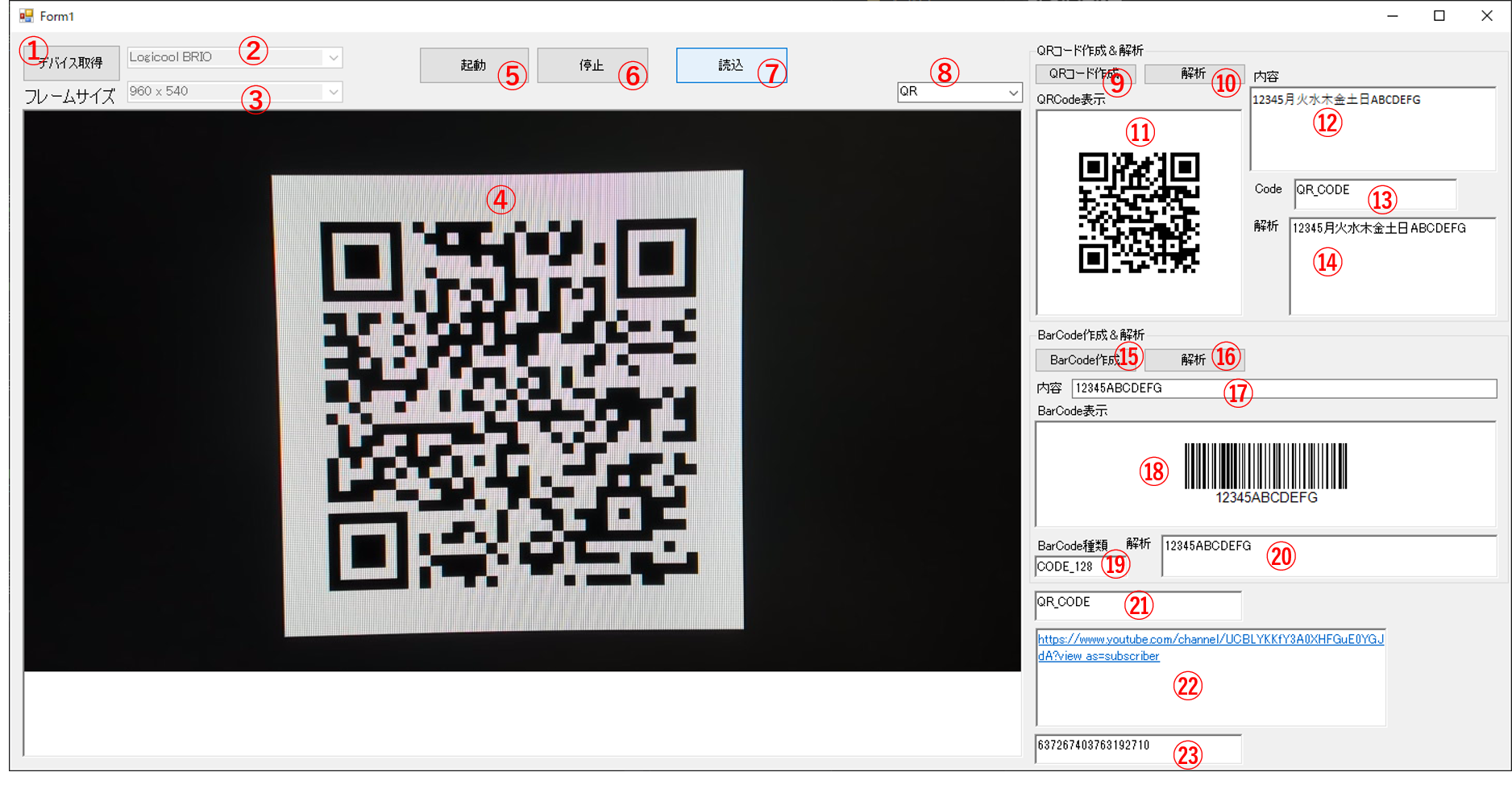
コントールの名前は適当なので、ご了承下さい。
- 番号 コントール名:コード内での識別する名前
- ①ボタン:deviceGet_button
- ②コンボボックス:comboBox1
- ③コンボボックス:comboBox2
- ④ピクチャボックス:camera_Live
- ⑤ボタン:start_button
- ⑥ボタン:stop_button
- ⑦ボタン:reader_button
- ⑧コンボボックス:comboBox3
- ⑨ボタン:qr_create_btn
- ⑩ボタン:qr_code_result_btn
- ⑪ピクチャボックス:pictureBox1
- ⑫リッチテキストボックス:str_qrcode
- ⑬リッチテキストボックス:richTextBox1
- ⑭リッチテキストボックス:richTextBox2
- ⑮ボタン:button3
- ⑯ボタン:button4
- ⑰テキストボックス:str_barcode
- ⑱ピクチャボックス:pictureBox2
- ⑲リッチテキストボックス:barcode_format_name
- ⑳リッチテキストボックス:barcode_res_box
- ㉑リッチテキストボックス:richTextBox4
- ㉒リッチテキストボックス:richTextBox3
- ㉓リッチテキストボックス:richTextBox5
操作&動作
【Webカメラ映像からQRコード解析】
①ボタンでデバイス一覧を取得して②からWebカメラを選択
③で映し出す映像のサイズを選択。
⑤でデバイスを起動する。④に映し出される。
⑥でデバイスを停止できる。
⑦で④に映し出されたQRCodeのキャプチャを取得し、QRCode情報をデコードして、㉑、㉒、㉓に情報を表示する。
【QRコードの作成&解析】
⑫に作成したいQRCodeの内容を書く。
⑨でQRCodeを作成して、⑪に表示させる。
⑩で⑪に表示されているQRCodeをデコードして、⑬、⑭に情報を表示する。
【Barコードの作成&解析】
⑰に作成したいBarCodeの内容を書く。
⑮でBarCodeを作成して、⑱に表示させる。
⑯で⑱に表示されているBarCodeをデコードして、⑲、⑳に情報を表示させる。
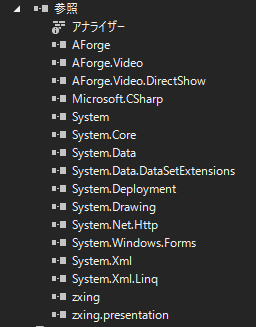
ライブラリの参照
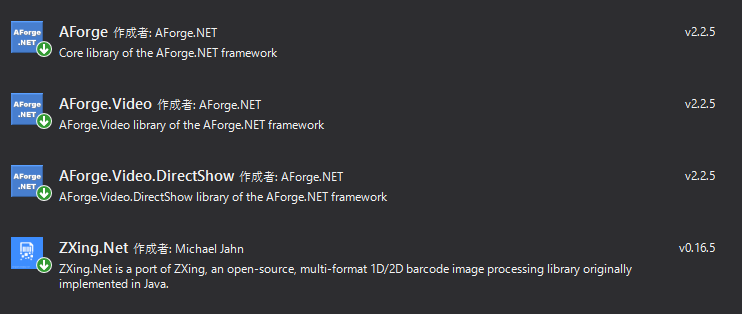
このアプリケーションをビルドするには、Nugetパッケージ管理から
- 「AForge」
- 「AForge.Video」
- 「AForge.Video.DirectShow」
- 「ZXing.Net」
をインストールしてください。
関連記事
【QRコード読取】WebカメラでQRコード読取CSV出力アプリ_OpenCV_ZXing使用


